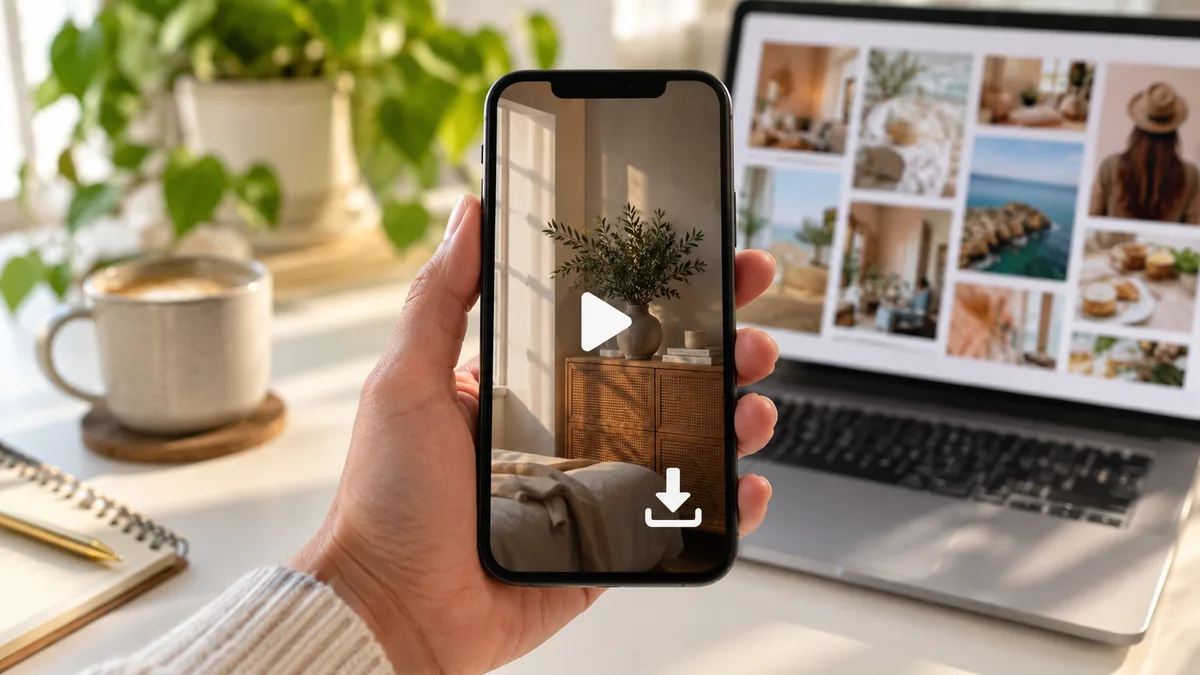
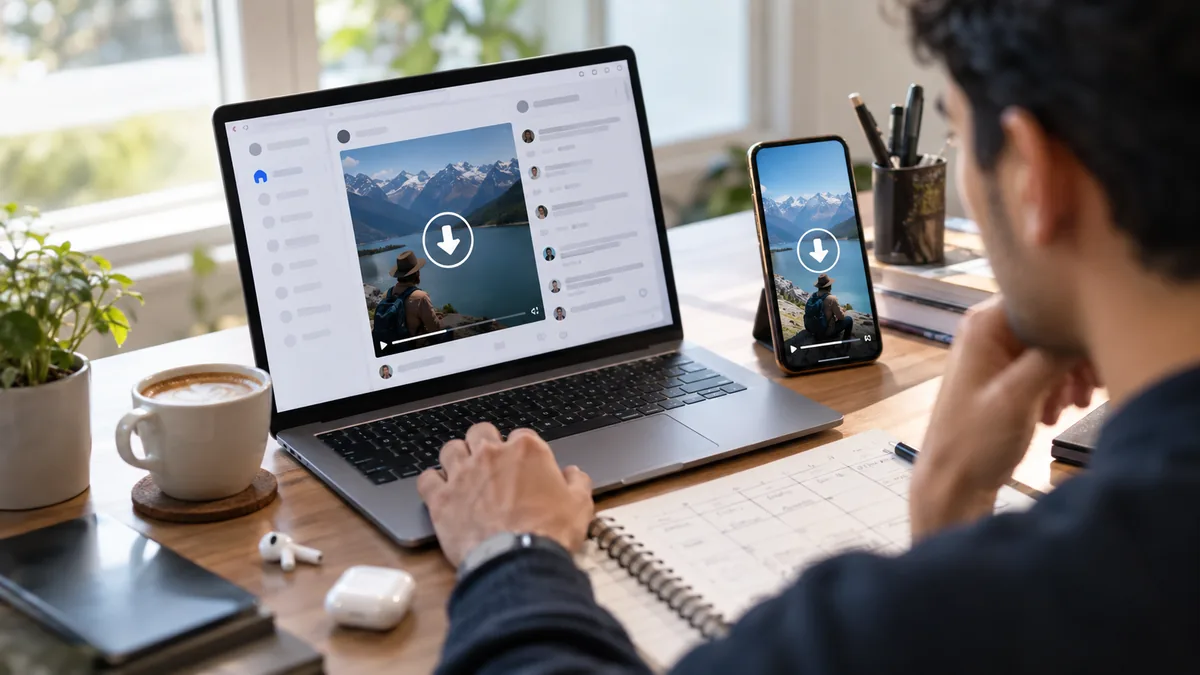
A LinkedIn video downloader helps your marketing by turning a post you can only watch into a file you can work with. Once the MP4 is on your drive, one recording becomes clips for four other platforms, a properly captioned cut, a slide in a pitch deck, an entry in a competitor swipe file and an archive copy that outlives the post itself. Saving it is the easy part. What the file is worth afterwards is the whole argument.
What a LinkedIn video downloader does for marketing
LinkedIn is built to keep video inside LinkedIn. There is no save button on someone else’s post, the mobile feed plays muted, and a post link only opens properly for people who are logged in. A LinkedIn video downloader removes exactly one of those constraints: you paste the post URL and get back the same MP4 LinkedIn is already streaming to your browser.
That change is small, and that is the point. Nothing about your editing, reporting or approval process has to move. The file lands in your Downloads folder and every tool you already own can open it — which is why one twenty-second habit shows up in seven very different corners of a marketing team.
Seven ways marketing teams use a downloaded LinkedIn video
1. Turn one long video into a week of short ones
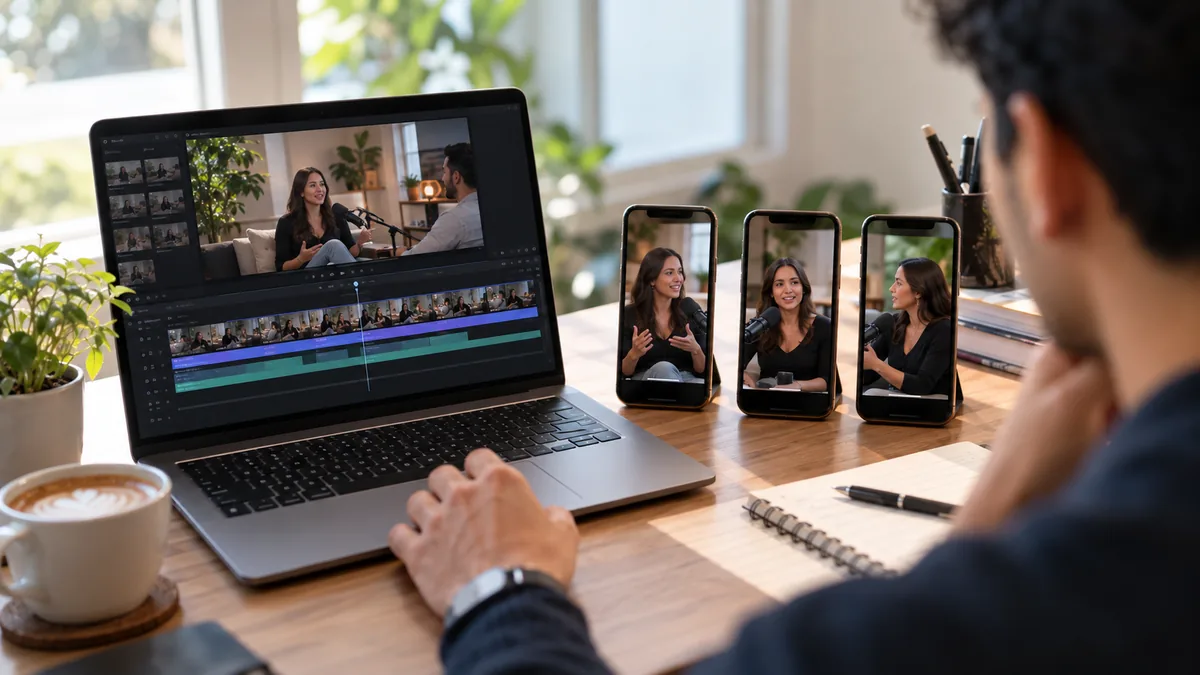
A ten-minute founder interview is ten minutes of raw material. As a file it is also four vertical cuts for Reels, three for Shorts, one for TikTok and a silent sixty-second loop for the top of a newsletter. Repurposing is the most common reason teams pull down their own video: the edit happens in your editor at full quality, rather than being re-recorded off a screen.
2. Caption it properly
LinkedIn’s automatic captions are fine in the feed and useless everywhere else. You cannot export them, restyle them, or fix the way the machine spelled your product name. With the MP4 in hand you caption it once, correct the transcript, and burn in subtitles that match your brand on every platform. The corrected transcript is worth nearly as much as the video: it becomes the blog post, the carousel and the email.
3. Build a swipe file of competitor video
Saving a rival’s best-performing post as a file beats bookmarking it. Bookmarks rot when a post is edited or deleted, and you cannot scrub frame by frame through a feed. A folder of downloaded competitor videos is something a team can actually study: what happens in the first two seconds, how long before the product appears, where the call to action lands.
4. Archive what you publish
Company pages get rebranded, employees leave and take their posts with them, and nobody can find the original export the agency delivered eighteen months ago. Downloading your own LinkedIn videos as you publish them costs nothing and quietly solves all three. The same argument holds on every platform, which is why we also wrote about backing up your TikTok videos.
5. Send a file, not a login
Client approvals, legal review and executive sign-off all slow down the moment you send a link that asks the recipient to sign in. An MP4 in a shared folder opens for everyone, on every device, including the one stakeholder who has never had a LinkedIn account.
6. Put real video in decks, ads and sales email
A case-study clip on a slide, a testimonial attached to a sales email, a three-second loop behind a landing page headline — all of it needs a file. Screen recording the post gives you a soft, cropped copy with the interface burned into the frame. The download gives you the video the way it was uploaded.
7. Keep what other people post about you
Employee advocacy posts, partner announcements and customer shout-outs are marketing assets you do not own. They can be edited or deleted without warning, and you will not be told. If a post mentions your brand and losing it would hurt, save it the day you see it.
Why the post link on its own is not enough
Every one of those seven uses needs a file, and LinkedIn does not hand one over. There is no download control on a post you did not publish, and the native option covers only your own video, only on desktop. Screen recording is the usual workaround and it is a poor one: you capture the player instead of the video, lose a generation of quality, pick up the interface and any stray scroll, and end up with something nobody wants to put in front of a client.
A downloader skips all of that by requesting the same MP4 the player requests. You get the original encode at the resolution it was uploaded, with no interface in frame and nothing stamped on top. If you have been warned that some tools brand the file they return, here is how to tell if a no watermark downloader is real.
How to download a LinkedIn video in three steps
To download a LinkedIn video, copy the post link, paste it into a LinkedIn downloader, and save the MP4.
- Copy the post link. On desktop, click the three dots at the top right of the post and choose Copy link to post. In the app, tap the share icon, then Copy.
- Paste it into the tool. Open the LinkedIn video downloader and drop the link into the box.
- Save the file. Press Download. On desktop the MP4 lands in Downloads; on a phone it saves to Files or Photos.
There is no account to create and nothing to install — which matters more than it sounds when the person doing it is a freelancer on a locked-down laptop.
Try the LinkedIn downloaderPaste a post link, get the MP4. No login, no extension, no ads. Open the toolWhat to check before you reuse someone else’s video
Downloading is not the same as licensing. Your own company’s video is yours. Someone else’s is theirs, and saving it for research, reference or an internal discussion sits in very different territory from cutting it into your next ad. Before anything you downloaded leaves your team, ask the creator, credit them by name, and keep the original post link stored next to the file so the source never gets lost. It takes one message, and it is the whole difference between a swipe file and a problem.